
How to Install RHEL 9.x in Oracle VirtualBox: Step-by-Step Guide for Beginners
Introduction
- Red Hat Enterprise Linux (RHEL) 9.x is a powerful, stable, and enterprise-grade Linux operating system widely used in production environments.
- If you’re preparing for certifications like RHCSA, learning Linux administration, or setting up a local lab for practice, installing RHEL 9.x on a virtual machine is the best place to start.
- Oracle VirtualBox allows you to run RHEL 9.x on your existing Windows, macOS, or Linux system without modifying your host OS. In this blog, you’ll learn how to install RHEL 9.x in Oracle VirtualBox step by step, even if you’re a beginner.
- This guide focuses on clean installation, best practices, and clarity, making it ideal for learners, students, and Linux professionals.
Prerequisites
Before starting the installation, make sure you have the following:
Minimum 8 GB RAM
At least 40 GB free disk space
64-bit processor with virtualization enabled
- Oracle VirtualBox installed
Steps to Install RHEL 9.x in Oracle VirtualBox
Step 1: Download RHEL 9.x ISO
- Create or log in to your Red Hat Developer account
- Download the RHEL 9.x DVD ISO file.
- Scroll to the bottom of the download page to find all available RHEL versions.
- Save the ISO file to a known location on your host machine
Step 2: Create a New Virtual Machine in Oracle VirtualBox
- Open Oracle VirtualBox and click New.
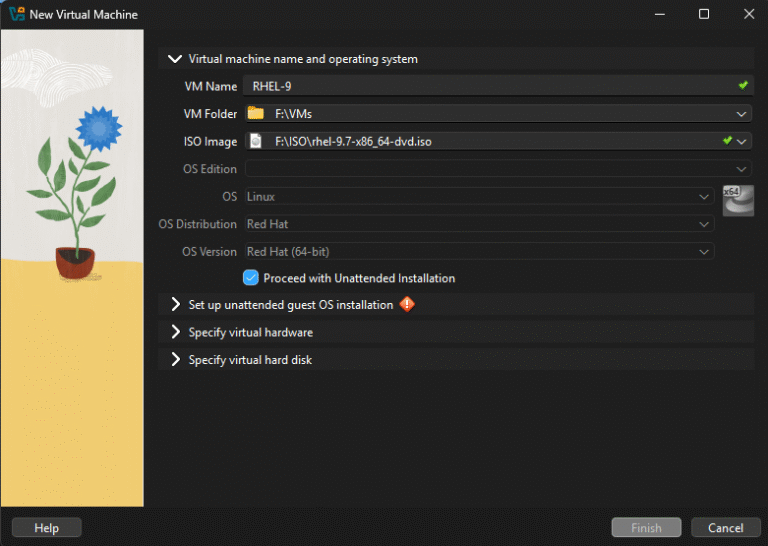
- Enter the following details:
- VM Name: RHEL 9
- VM Folder: Choose the location where the VM files should be stored on the host machine
- ISO Image: Select the RHEL 9.x ISO file you downloaded
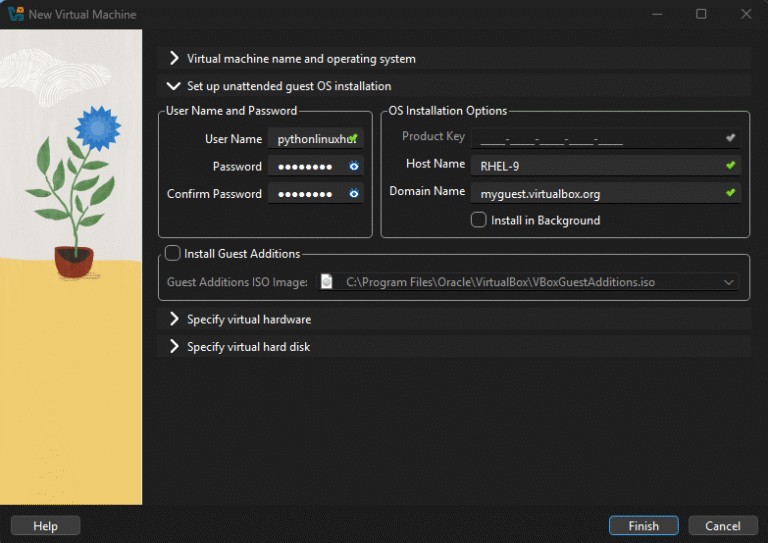
- Enter the username and password.
- This user account will be created automatically during installation.
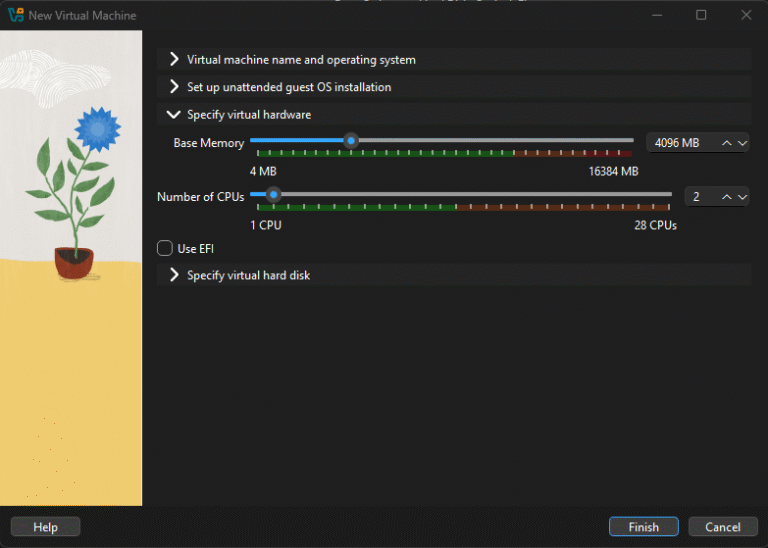
- Configure virtual machine hardware:
- Memory: 4096 MB (minimum recommended)
- CPU: 2 cores (minimum requirement)
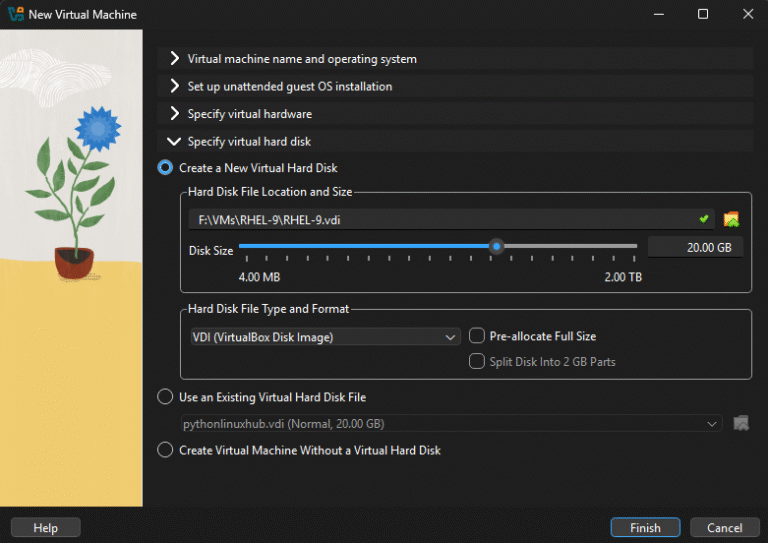
- Configure the virtual hard disk:
- Disk Size: At least 20 GB (40 GB recommended for practice)
- Click Finish.
- If you see an image checksum error, follow these steps:
- Power off the virtual machine by closing the window.
- Select the VM –> click Settings –> Storage.
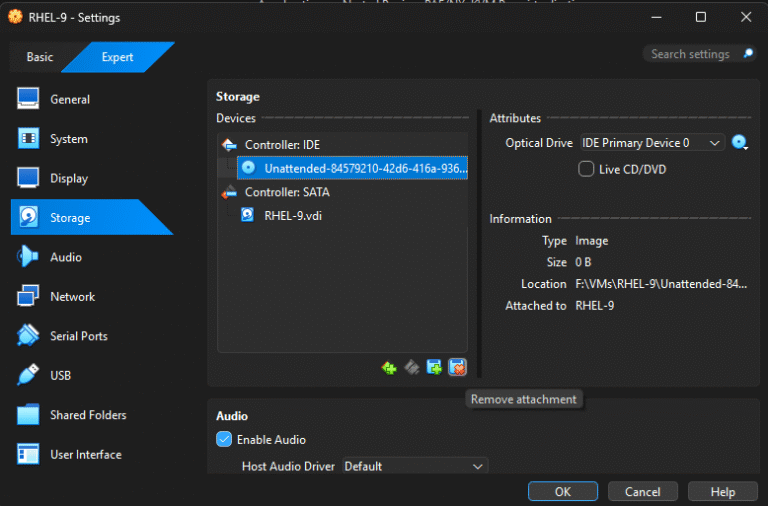
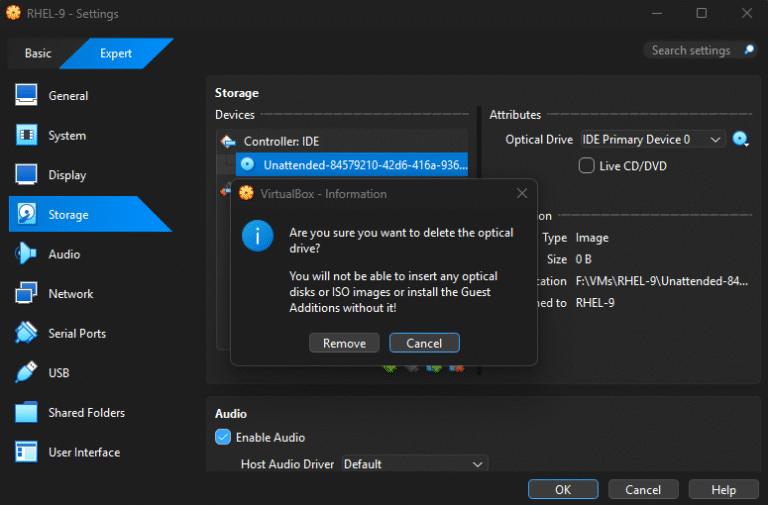
- Under Controller: IDE, remove the existing ISO attachment.
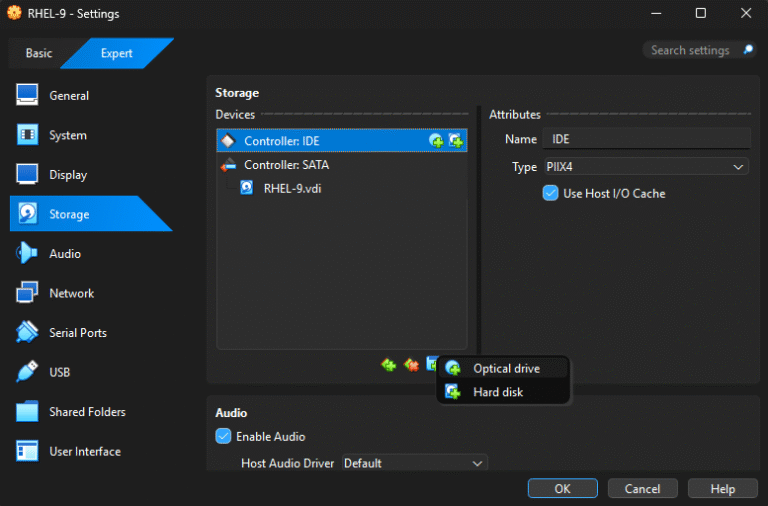
- Click Add Attachment –> select Optical Drive.
-
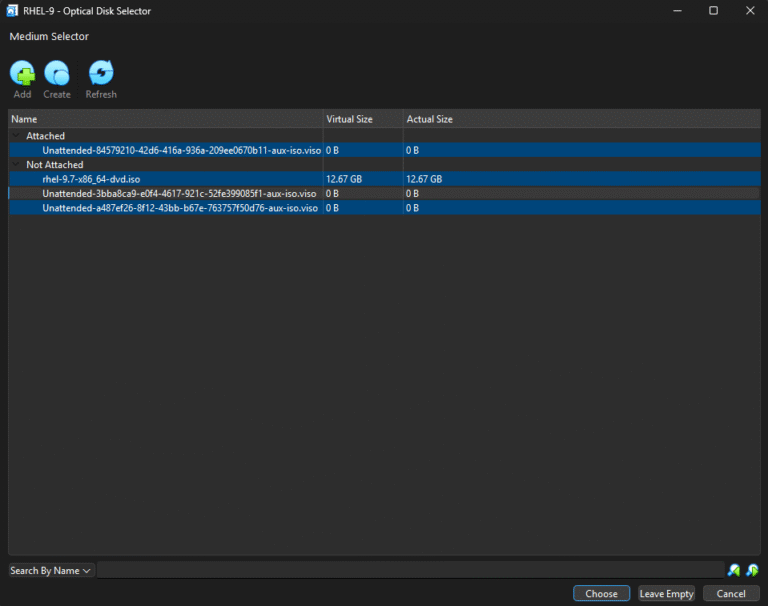
- Click Add, choose the RHEL ISO file, and click OK.
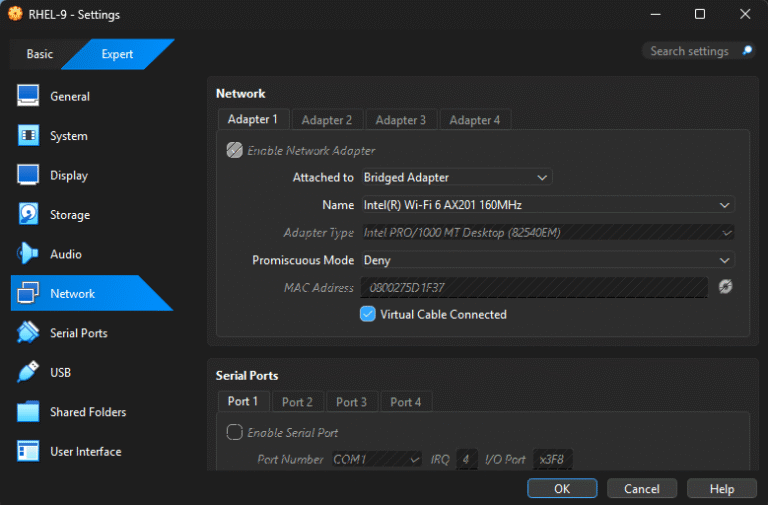
- To enable SSH access and automatically assign an IP address:
- Select the VM → click Settings → Network.
- Change Attached to from NAT to Bridged Adapter.
- Click OK.
Step 3: Start the Virtual Machine and Install RHEL 9.x
- In Oracle VirtualBox, double-click the VM name to start it.
- Choose Install Red Hat Enterprise Linux 9.x and press Enter.
- Select English as the language and click Continue.
- On the Installation Summary screen:
- Click Installation Destination and click Done (default automatic partitioning is sufficient).
- Set the Root Password.
- Configure Language & Keyboard, Time & Date, if required.
- Under Software Selection, choose:
- Server with GUI or
- Minimal Install (recommended for learning Linux administration).
- Click Begin Installation.
Step 4: Complete Installation and First Boot
- Once the installation is completed, click Reboot System.
- After reboot:
- Click Start Setup → Next → Skip.
- When prompted for user creation:
- Use the same username created during VM creation or
- Create a new user and set a password.
- Click Next to complete the setup.
Step 5: Configure Local Repository
- By default, RHEL systems require access to official repositories to install, update, or manage packages using
yumordnf. - In lab or offline environments the repository manager is not available. So, package installation and updates will not work out of the box.
- To overcome this limitation, you can configure a local repository using the RHEL ISO image. This allows you to:
Install packages without internet access
Practice real-world Linux administration tasks
Prepare effectively for certifications like RHCSA
- Follow this step-by-step guide to configure a local repository: Configure Local Repository in RHEL 9 Using ISO
Learn More and Excel in Linux
- If you want to build strong Linux fundamentals, practice real-world scenarios, and prepare for certifications, check out my structured Linux tutorials.
- Explore the complete Linux Tutorials here: Linux Tutorials – Step-by-Step Learning Path
- These tutorials cover:
Linux basics to advanced administration
Hands-on labs and real-time examples
RHCSA-focused learning approach
🎉 Your RHEL 9.x Virtual Machine is now ready to use!

Shaik Mohammed Faruk
Software Engineer sharing practical tutorials and insights on Linux, Python, SQL, and modern technologies.
Read more About Me
VIP7777bet, huh? Sounds fancy! I gave it a shot and the VIP perks weren’t too shabby. They got some decent odds too. Worth a look if you’re feeling lucky. Check it out here vip7777bet!
Yo, 71games22wins looks promising! Gave it a spin and had some decent wins. Worth a look if you’re seeking a new spot to try your luck. 71games22wins
Has anyone been placing bets through 2hbets? I’m finding that this site has a lot of options available for bets. Let’s see how much we win! 2hbets
Finding a trustworthy site can be hard but this one feels legit. The customer support answered my questions in minutes. Love the efficiency of idzuma78.
Great options for cash-ins and withdrawals. It is very convenient for local players and the support team is helpful. Visit phnustargcash
Been trying different sites lately but this one stands out. 22jililogin has the best win rates I’ve encountered so far.
Best slot experience I’ve had in a while. The RTP seems decent and the animations are great. Check out bolaslot888 if you’re feeling lucky today.
Really impressed with the customer support on this site. They answered my questions in minutes. inzetto really knows how to treat their players right.
Best gaming experience I have had in a long time. The bonuses are actually helpful and not just for show. Definitely try ph69jili if you want real action.
Finally found a site that actually pays out fast. I was a bit skeptical at first but bdrk7777 proved me wrong. Great experience so far!
I’ve been trying a few different sites lately and this one really stands out. The games load fast and the payouts are legit. Definitely my new favorite spot for spinning pk44slots.
Great bonuses for new members and the app is very stable. I really enjoy the variety of games on 500jiliapp.
Best Jili experience I have had in a while. The bonuses are generous and the loading speed is impressive. Highly recommend ph991jili to everyone looking for big wins.
The odds here are actually quite competitive compared to others I’ve used. Everything feels legit and the support team is very helpful. Give ph365ph a try.
This place is honestly so much fun. The community is great and the games keep me entertained for hours. If you want a stress free gaming environment go for kr22fun.
Great platform with a very secure login process. I feel safe depositing my funds here and the customer support is actually helpful. jilibet888login
Really impressed with the bonus offers they have for new members. It gave me a great head start. If you are looking for value, give idharta328 a try.
I’ve tried a few sites lately but this one really stands out. The interface is smooth and the payouts are surprisingly fast. Definitely checking out bdgv88 again tonight!
Finally found a way to get the app installed without any hassle. The mobile experience is way better than the browser version. Get it via 355betappdownload.
Had a great experience with the bonuses here. It feels like the house actually wants you to win for once. Check out area188login and see for yourself.
A very decent experience overall. I appreciate the attention to detail and the overall stability of the site. I’m glad I stumbled upon vx7776 today.
Honestly the best gaming experience I’ve had in a while. The bonuses are generous and the customer support is top notch. Highly recommend vnnohu77 to everyone.
Found this place through a friend and it did not disappoint. The variety of options is amazing and it feels very secure. Give phjljl18 a try
The variety of games here is insane. I love how easy it is to navigate through the lobby. I’m spending most of my free time on idsgo777 these days.
Great platform with a very secure login process. I feel safe depositing my funds here and the customer support is actually helpful. jilibet888login
Such a fun experience! I love how easy it is to get started and the graphics are actually quite impressive. nutristargame is awesome.
Finally found a platform that doesn’t lag during peak hours. The customer support is also very responsive which gives me peace of mind. Big thanks to phvipphfun